


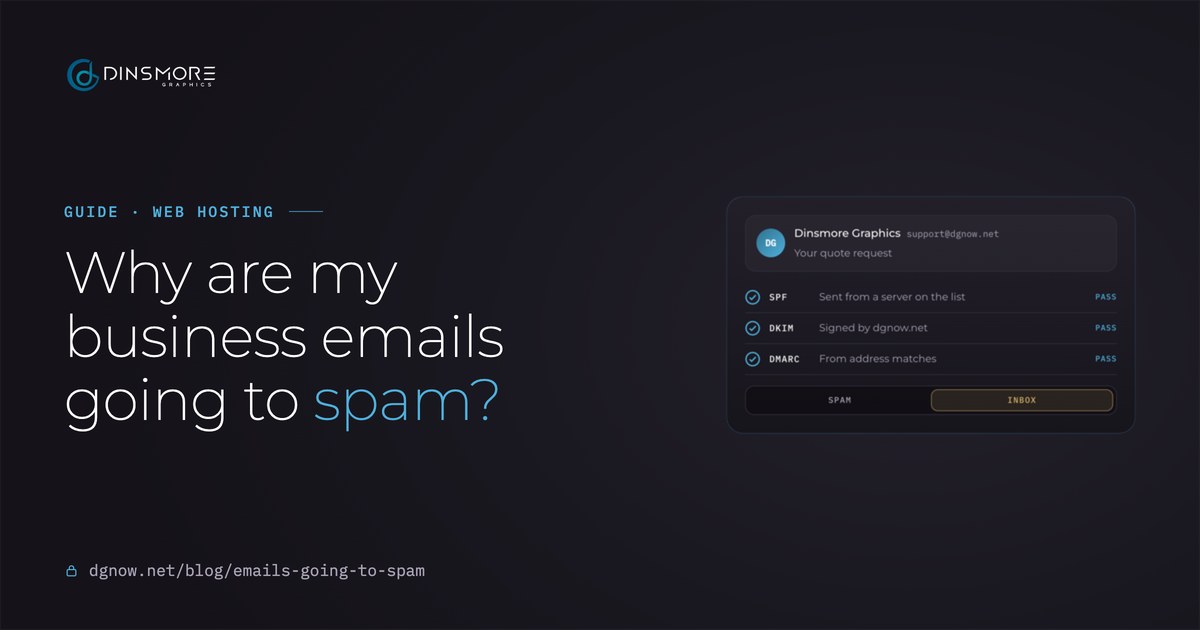
- SPFSent from a server on the listCheckingPass
- DKIMSigned by dgnow.netCheckingPass
- DMARCFrom address matchesCheckingPass
Key takeaways
- Most business email lands in spam because the domain can’t prove the email is really from you.
- SPF, DKIM and DMARC are three short records in your domain’s settings. You need all three.
- Check any email in Gmail with Show original: SPF, DKIM and DMARC should all say PASS.
- Website form emails sent by the server itself often skip all three. Send them through your real mailbox.
- Fix it in order: list everything that sends as you, one SPF record, DKIM on each, then DMARC.
Chapter 01Why it happens
Why are my business emails going to spam?
Usually because your domain never told Gmail and Outlook who is allowed to send as you, so your real email looks like a fake.
Spam filters see millions of emails pretending to be from real businesses. The first thing they check is whether yours can prove it is really from you. When it can't, even a normal reply to a customer can land in their spam folder. These are the four causes we see most:
- No proof it is you
Your domain has no SPF, DKIM or DMARC records, or they are wrong. This is the most common cause by far.
- Your website sends as you
Contact forms and order emails sent by the web server itself, without signing in to your mailbox.
- Complaints and bounces
People marking your mail as spam, or lots of mail to old addresses, lowers your reputation.
- The message itself
All images, a link shortener, or a large first send from a new address. It matters less than the first three.
Chapter 02Check it
How do I check if my emails pass?
Send yourself an email, open it in Gmail, choose Show original, and read three lines: SPF, DKIM and DMARC should all say PASS.
- 1Send a test
From your business address, send a short email to a personal Gmail address.
- 2Open Show original
In Gmail on a computer, open the email, click the three dots next to Reply and choose Show original.
- 3Read the three lines
Near the top: SPF, DKIM and DMARC. Each one says PASS, FAIL or nothing at all.
- 4Test your website too
Fill in your own contact form with your Gmail address and check that email the same way.
- From
- Dinsmore Graphics <support-nospam@dgnow.net.invalid>
- Subject
- Your quote request
- SPF
- PASS with IP 209.85.222.172 (a Google mail server)
- DKIM
- 'PASS' with domain dgnow.net
- DMARC
- 'PASS'
In Outlook on the web, the same answers are in the message source: open the email, choose View, then View message source, and look for the line that starts with Authentication-Results.
Chapter 03In plain words
What are SPF, DKIM and DMARC, in plain words?
SPF is the guest list, DKIM is the wax seal, and DMARC is the instructions for anything that fails. You need all three.
- SPFThe guest list
A list of the servers allowed to send email for your domain. Mail from a server that isn't on it looks fake.
- DKIMThe wax seal
A signature added to every email, checked against a public key in your domain. It proves the message wasn't changed on the way.
- DMARCThe instructions
Tells Gmail and Outlook what to do when SPF or DKIM fails for your From address: watch, send to spam, or reject. It also sends you reports.
DMARC is the one people skip, and it is the one that ties the other two to the address your customers actually see. An email can pass SPF for your email provider's domain and still fail DMARC for yours. That is why the From address has to match.
Chapter 04Good records
What do good email records look like?
One SPF record, a DKIM key from each service that sends as you, and a DMARC record. Here are ours.
- SPFdgnow.net
v=spf1 include:_spf.google.com ~allOnly Google's servers send for dgnow.net. ~all marks anything else as suspicious.
- DKIMgoogle._domainkey.dgnow.net
v=DKIM1; k=rsa; p=MIIBIjANBgkqh...The public half of Google's 2048-bit signing key for our domain.
- DMARC_dmarc.dgnow.net
v=DMARC1; p=none; rua=mailto:support-nospam@dgnow.net.invalidWatch mode: nothing is blocked yet, and daily reports come to our inbox.
- One SPF record only. Two SPF records on one domain break both. Every service goes in the same record.
- A DKIM key per sender. Google Workspace, Microsoft 365 and newsletter tools each give you their own key to add.
- DMARC starts in watch mode. p=none first, read the reports for a few weeks, then move to quarantine once everything passes.
Chapter 05Website forms
Why do my website's form emails go to spam?
Because the website hands them to the server's built-in mail, which doesn't sign in to your mailbox. Send them through your real mailbox instead.
A WordPress site sends email the simplest way it can: it passes the message to the web server and hopes. That email claims to be from your address but comes from a server your SPF record doesn't list and carries no DKIM signature for your domain. To Gmail it looks like exactly the kind of fake DMARC exists to catch.
The fix is a mail connection (SMTP) that signs in to your real mailbox, Google Workspace or your hosting email, so form emails leave the same way your normal email does. One of our salon clients had every form email landing in spam; after the website was switched to send through the salon's own mail server, they arrive in the inbox.
- From your address: the form email comes from a real mailbox on your domain, like hello@yourbusiness.com.
- Reply-To the customer: their address goes in Reply-To, so pressing Reply still answers them.
- Never From the customer: sending “from” the visitor’s Gmail address fails DMARC every time.
Chapter 06The rules
What are Gmail's and Outlook's rules now?
Gmail asks every sender for SPF or DKIM, and big senders for all three. Outlook.com now junks, then rejects, big senders without them.
| Who | Since | What they ask for |
|---|---|---|
| Gmail, every sender | Since Feb 1, 2024 | SPF or DKIM, a secure connection, and a spam rate under 0.3% |
| Gmail, 5,000+ a day | Since Feb 1, 2024 | SPF and DKIM, a DMARC record, a matching From address, one-click unsubscribe on marketing mail |
| Outlook.com, 5,000+ a day | Since May 5, 2025 | SPF, DKIM and DMARC; failing mail goes to junk, then is rejected (error 550 5.7.515) |
| Everyone else | Always | Unauthenticated mail is treated as risky and often filtered to spam |
Most small businesses never send 5,000 emails a day, so the strict rules don't apply to you on paper. In practice the filters reward the same three records at any size, and a newsletter or a busy store can cross the line on a single day.
Chapter 07Fix it in order
In what order do I fix it?
List everything that sends as you first, then SPF, then DKIM, then DMARC in watch mode, then test.
- 1List every sender
Your email provider, your website, newsletters, invoices, booking reminders. Anything that puts your address in the From line.
- 2Write one SPF record
Combine them into a single line in your domain's DNS settings. Never add a second SPF record.
- 3Turn on DKIM
In each service, find the domain authentication or DKIM setting and add the records it gives you.
- 4Add DMARC in watch mode
v=DMARC1; p=none; with reports to an inbox you read. Tighten it later.
- 5Test, then wait
Send the Show original test and a website form test. DNS changes can take a few hours to show everywhere.
What sends email as you?
Your SPF record
Then
Email sender checklist
Print it, tick it, keep it with your logins.- Every service that sends as you
- Email provider, website, newsletter, invoicing, booking
- Your SPF record
- One line, every sender included
- DKIM for each sender
- On and signing with your domain
- Your DMARC record
- p=none, reports to a real inbox
- Show original test
- SPF, DKIM, DMARC all PASS
- Website form test
- Arrives in the inbox, Reply-To the customer
Free consultation
Emails landing in spam?
Send me your domain. I'll look up your records, test your website's form emails and tell you exactly what to change, before any work starts.
Chapter 08How we help
How do we help?
We set up the records, connect your domain to your email, and make your website send through your real mailbox.
- Records checked and set
SPF, DKIM and DMARC for every service that sends as you, tested with real emails before we call it done.
- Google Workspace or hosting email
Keep Gmail, Drive, Calendar and Meet with Google while your site stays on Dinsmore Hosting; we connect your domain to both.
- Form emails that arrive
Your website’s forms send through your real mailbox, from your address, with the customer in Reply-To.
This is the setup on dgnow.net itself: Google Workspace for email, the website sending through it, and all three records passing.
Questions
Straight answers.
More of what people ask about email, hosting and their website.
Updated
Why do my emails go to spam in Outlook but not in Gmail?
Each provider weighs things differently. Outlook leans harder on authentication and sender reputation, so a missing DKIM or DMARC record often shows up there first. Fix the records and both usually follow.
Do I need DMARC if I only send a few emails a day?
Yes. Gmail only requires it of big senders, but every filter uses it, and it is the record that ties SPF and DKIM to the address your customers see. Start with p=none; it blocks nothing.
Can I have two SPF records?
No. A domain with two SPF records fails SPF entirely. Put every service in one record, like v=spf1 include:_spf.google.com include:spf.protection.outlook.com ~all.
Why did my emails suddenly start going to spam?
Usually a change: a new service sending as you without being in your SPF record, a moved website that now sends from a new server, or a DNS change that dropped a record. A hacked mailbox sending spam can do it too.
Will a strict DMARC policy block my own emails?
It can, if a service that sends as you isn’t set up yet. That is why DMARC starts at p=none: read the reports, fix every sender, then move to quarantine.
Does my contact form need its own email account?
It needs a real mailbox to send through. Many businesses use their main address; a separate one like forms@ keeps form mail tidy. Either way it signs in with an SMTP connection.